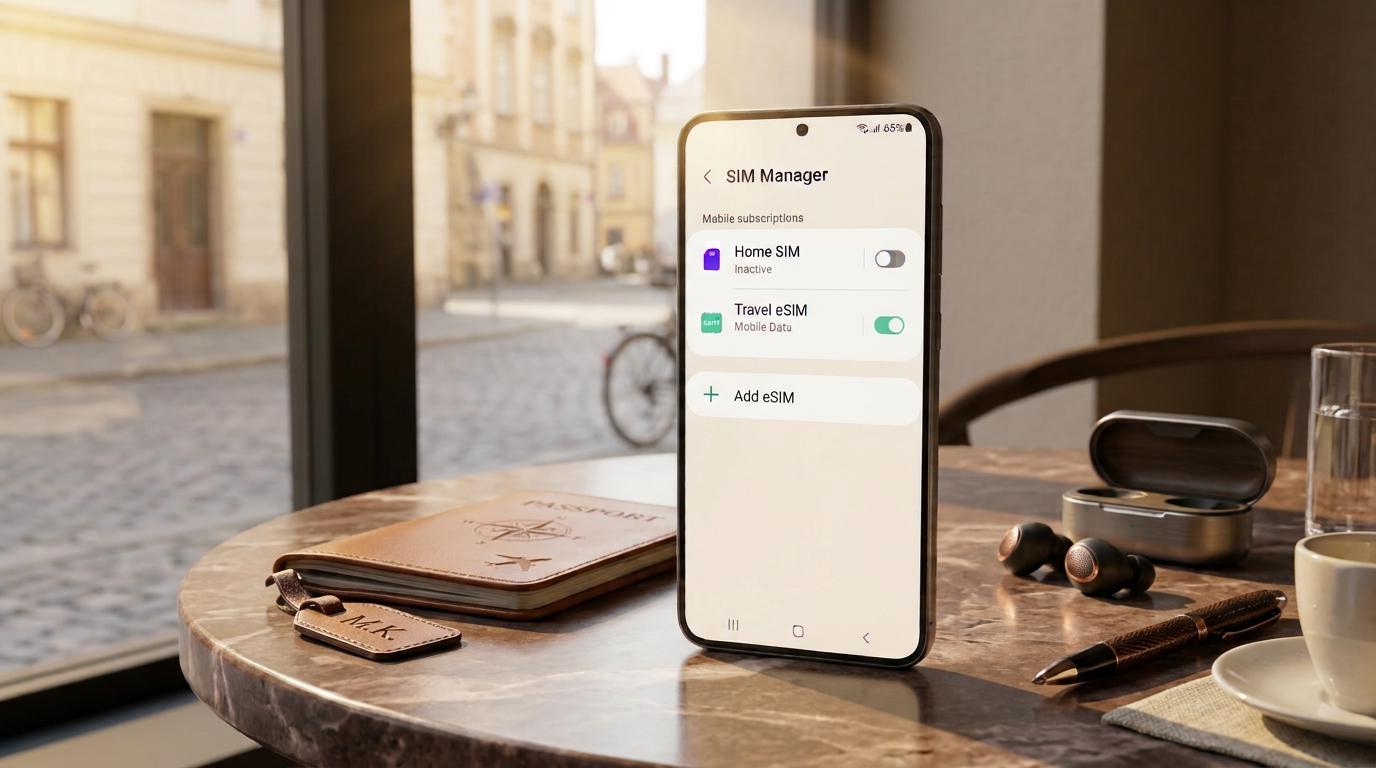
Traveling abroad with a Samsung Galaxy smartphone? You may not need to purchase a physical SIM card when you arrive.
With a compatible Samsung Galaxy device, you can install a travel eSIM, connect to supported mobile networks at your destination, and manage your mobile data directly through your phone's settings.
You can also keep your regular SIM available while using a separate travel eSIM for internet access, depending on your device's Dual SIM capabilities.
However, installing an eSIM is only the beginning. You also need to configure your mobile data settings, understand how Data Roaming works, and make sure your phone connects to the correct network.
This guide explains how to install, activate, and use a travel eSIM on Samsung Galaxy smartphones, including what to check before departure and how to troubleshoot connection problems.
To use a travel eSIM on a compatible Samsung Galaxy smartphone:
The exact menu names and available options may differ depending on your Samsung Galaxy model, region, carrier, and One UI version.
An eSIM is a digital SIM built into a compatible smartphone.
Instead of inserting a removable physical SIM card, you install a mobile subscription digitally.
On Samsung Galaxy devices, eSIM subscriptions are generally managed through SIM Manager.
A travel eSIM allows you to use a separate mobile data plan when visiting another country.
For example, if you're traveling from the UAE to Turkey, you can install a Figabytes travel eSIM for Turkey and use it for mobile internet access while abroad.
Depending on your device's capabilities, you may also be able to keep your regular SIM enabled for calls and SMS.
An eSIM is not automatically an international roaming package from your home carrier. It is a separate mobile subscription with its own coverage and usage conditions.
Many recent Samsung Galaxy smartphones support eSIM, but availability depends on the exact model and regional variant.
Supported devices may include selected models from these families:
Not every device within these families supports eSIM in every country.
Some regional variants have different SIM configurations or carrier restrictions.
The easiest way to check is through your phone's settings.
If the option is available, your device may support eSIM installation.
You can also check whether your device has an EID:
An EID is a useful indicator of eSIM functionality.
However, the most reliable approach is to confirm compatibility for your exact model and regional variant before purchasing.
Check Figabytes eSIM compatibility
Before installing a travel eSIM, make sure your phone can accept subscriptions from other mobile providers.
A carrier-locked phone may reject an eSIM from another provider.
Unlike some iPhones, Samsung Galaxy devices do not always display a simple universal carrier-lock status in Settings.
You can check your purchase documentation or contact the mobile carrier that originally supplied the phone.
If you're unsure, confirm the unlock status before purchasing your travel eSIM.
Learn how to check if your phone is unlocked
A travel eSIM can make international connectivity easier in several ways.
You can often install your travel eSIM before leaving home, depending on the plan's activation rules.
This gives you time to complete the setup while you have a reliable Wi-Fi connection.
A travel eSIM is installed digitally, so you don't need to remove your existing physical SIM.
On compatible Dual SIM configurations, your home SIM can remain available while the travel eSIM provides mobile data.
Regular cellular calls and SMS may still be subject to your home carrier's roaming charges.
Figabytes offers country, regional, and global travel eSIM plans for supported destinations.
Samsung Galaxy SIM Manager allows you to manage installed subscriptions and select which line provides mobile data, subject to your device's supported configuration.
Before starting, make sure:
Samsung Galaxy devices support different installation methods depending on the model, software version, and eSIM provider.
QR code installation is a common way to add a travel eSIM.
Step 1: Open Settings
Open the Settings application on your Samsung Galaxy.
Step 2: Open Connections
Tap Connections.
Step 3: Open SIM Manager
Select SIM Manager.
Step 4: Add an eSIM
Tap Add eSIM.
Step 5: Scan the QR Code
Choose the option to scan a QR code when available.
Scan the installation QR code provided with your travel eSIM.
Step 6: Confirm Installation
Follow the on-screen instructions to download and install the eSIM profile.
Step 7: Check SIM Manager
Return to SIM Manager and confirm that the travel eSIM appears among your available subscriptions.
If your QR code is displayed on the same phone, you may need another screen or a supported option for selecting a QR code image.
Do not assume that an installation QR code can be reused after the eSIM has been added.
Some travel eSIMs provide manual activation information.
If your Samsung Galaxy supports manual entry:
Only use the activation information provided for your specific plan.
The available manual installation options may differ by device and software version.
Installing an eSIM and activating its plan validity are not always the same event.
Some travel eSIM plans begin their validity period when they first connect to a supported network.
Other plans may have different activation conditions.
Always review the rules for your specific plan.
Your eSIM should connect when the plan is active, your location is covered, and the required network settings are configured.
Installing a travel eSIM does not always make it the selected data subscription.
To configure your mobile data:
Some Samsung Galaxy devices use a different interface for selecting the preferred data subscription.
Make sure your travel eSIM is selected before using cellular internet abroad.
Many travel eSIMs connect through local partner networks.
As a result, Data Roaming may need to be enabled for the travel eSIM to access mobile data.
This does not mean you should automatically enable roaming on your regular home SIM.
| Setting | Home SIM | Figabytes Travel eSIM |
|---|---|---|
| Subscription enabled | Optional | Yes |
| Mobile data | Not selected | Selected |
| Data Roaming | Off, where separately supported | On if required |
| Regular calls | Subject to carrier terms | Usually not included |
| SMS | Subject to carrier terms | Usually not included |
| Internet access | Uses selected connection | Provides mobile data |
Some Samsung Galaxy models provide separate roaming controls for individual subscriptions.
Others may display a shared Data Roaming setting.
If your phone uses a shared roaming control, do not assume your home SIM is fully protected simply because the travel eSIM is selected for mobile data.
Consider disabling your home SIM or asking your home carrier to block chargeable international roaming services.
Turning off Data Roaming does not necessarily prevent charges for regular calls or SMS.
Dual SIM allows compatible Samsung Galaxy devices to manage two mobile subscriptions.
Depending on the model, this may include:
The number of active subscriptions depends on the device and regional variant.
Imagine you're visiting Japan with your regular UAE mobile number.
You could configure your phone as follows:
Home SIM
Figabytes Travel eSIM
This arrangement can help separate your regular mobile number from your travel data connection.
Yes, on compatible Dual SIM devices.
Your home SIM may remain active while the travel eSIM provides mobile internet access.
This can help you continue receiving:
However, your home carrier determines whether these services work internationally and whether charges apply.
Keeping your home SIM enabled does not guarantee free roaming.
If you do not need calls or SMS through your regular number, disabling the home SIM can reduce the risk of unwanted cellular roaming activity.
Yes.
WhatsApp and similar internet-based messaging applications can use your travel eSIM's mobile data connection.
Installing a travel eSIM does not normally change the number registered to your existing messaging account.
You can generally continue using your existing account while traveling.
However, if an application requires SMS verification, you may need access to the number associated with that account.
If you don't need your regular phone number during your trip, you can disable the home SIM.
On supported Samsung Galaxy devices:
Your travel eSIM can remain enabled for mobile data.
Disabling the home SIM means you may not receive calls or SMS through that number until you turn it back on.
The subscription itself remains active with your home carrier unless separately suspended or canceled.
If you're visiting several destinations, a regional or global eSIM may be more convenient than managing separate country-specific plans.
Figabytes offers travel eSIM options for supported countries and regions.
Before purchasing, review:
Do not assume every regional plan includes every country in that region.
Always check the destination list for your selected plan.
Monitoring mobile data usage can help you manage your travel allowance.
On many Samsung Galaxy devices:
Depending on your device and software version, you may be able to review usage for the selected SIM and individual applications.
Your phone's usage statistics may not match the billing period or validity dates of your travel eSIM plan.
You can also check your available plan information through the Figabytes website.
This helps you monitor your remaining travel data.
You can make your travel data allowance last longer by adjusting a few settings.
On supported Samsung Galaxy devices:
Data Saver helps limit background mobile data usage.
Download supported offline maps before traveling to reduce data usage during navigation.
Use Wi-Fi for large application and software downloads.
Some applications use mobile data even when you're not actively using them.
Review background usage and restrict unnecessary activity.
Lower video streaming quality when you want to conserve mobile data.
Automatic photo and video backups can consume substantial data.
Consider using Wi-Fi for large uploads.
Some travel eSIM plans support hotspot and tethering.
If your plan and device support the feature, you may be able to share your mobile data connection with another device.
To enable Mobile Hotspot on many Samsung Galaxy smartphones:
Connect your other device using the displayed Wi-Fi credentials.
Hotspot availability depends on your travel eSIM plan, network, and device configuration.
Check your plan's conditions before relying on hotspot access.
If your travel eSIM is installed but mobile data is not working, review the following possibilities.
Open SIM Manager and confirm that the travel eSIM is enabled.
Check your preferred mobile data subscription.
Make sure your travel eSIM is selected.
Some travel eSIMs require Data Roaming to be enabled.
Follow your plan's instructions.
Check whether your current country is included in your plan.
Try toggling Airplane Mode, then wait for your device to reconnect.
Automatic network selection usually works well.
If your plan provides specific supported network instructions, follow them.
Some travel eSIM plans require a specific Access Point Name.
If your plan provides APN details, enter them exactly as instructed.
On many Samsung Galaxy devices, APN settings are available under:
Settings > Connections > Mobile networks > Access Point Names
Menu availability varies by model, carrier, and software version.
Do not change APN settings unnecessarily.
Check your plan's validity and remaining allowance.
A carrier-locked device may prevent installation or use of another provider's eSIM.
Contact your original carrier if necessary.
Some Samsung Galaxy devices support automatic data switching.
If your phone switches away from the travel eSIM, review the available switching settings and disable the feature when appropriate.
Not necessarily.
Some Figabytes eSIMs support reusable installation with eligible plans.
If your eSIM supports reuse, keeping the installed profile may make future eligible purchases more convenient.
However, reusability depends on the specific eSIM and plan.
Before deleting your eSIM:
Deleting an eSIM does not automatically cancel a plan or guarantee that the same installation details can be reused.
Avoid deleting your eSIM as an initial troubleshooting step unless official support instructs you to do so.
Compatibility varies by model and region.
A locked device may reject a travel eSIM.
Always confirm which subscription provides mobile data abroad.
Your travel eSIM may require roaming to connect.
Regular calls, SMS, and other home-carrier services may still be chargeable.
Some profiles cannot be reinstalled using the original activation details.
Installing an eSIM does not always start its validity period.
On compatible devices, open Settings > Connections > SIM Manager > Add eSIM and follow the available installation instructions.
No. eSIM compatibility depends on the exact model, regional variant, and carrier support.
Often, yes. Check the activation and validity conditions of your selected plan before installation.
Some travel eSIMs require Data Roaming to be enabled to connect through supported local networks.
Yes, on compatible Dual SIM Samsung Galaxy devices.
You may be able to receive SMS on your home SIM if it remains active and your carrier supports roaming.
A data-only travel eSIM does not normally replace the number associated with your existing home SIM.
Yes. WhatsApp can use the internet connection provided by your travel eSIM.
Yes, if hotspot is supported by your plan, device, and network.
Possible reasons include unsupported coverage, incorrect network settings, disabled roaming, inactive plans, or network registration delays.
Some Figabytes plans support reusable eSIM installation. Check the eligibility conditions of your specific eSIM.
Yes, if your selected regional or global plan includes those destinations.
Using a travel eSIM on Samsung Galaxy can make international connectivity more convenient.
The key is preparing your phone before departure and selecting the correct settings after arrival.
Confirm eSIM compatibility, check that your device is unlocked, install your travel eSIM, and select it for mobile data.
If your travel eSIM requires Data Roaming, enable it according to the plan instructions.
If you keep your home SIM active, remember that calls, SMS, and other carrier services may still generate roaming charges.
With the correct configuration, a Figabytes travel eSIM can help you stay connected in supported destinations without relying on your home carrier's international data roaming service.
Explore Figabytes travel eSIM plans
Device features, installation methods, network settings, and roaming conditions vary by model, region, software version, and subscription.

