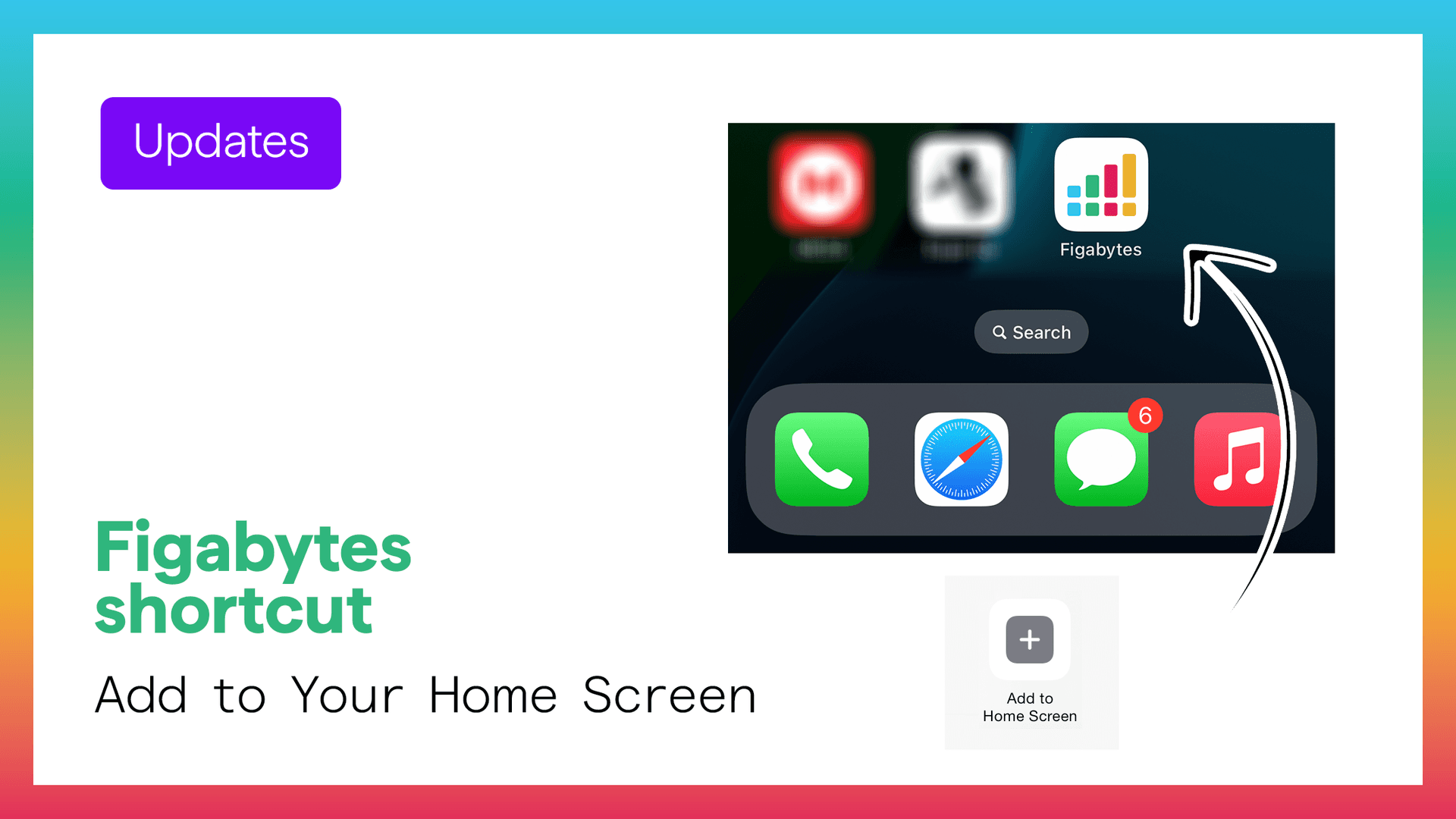
You can add Figabytes to your iPhone Home Screen for faster access anytime.
This creates a clean shortcut that opens like an app, making it easier to browse plans, manage trips, and access your dashboard in one tap.
Adding Figabytes gives you:
Open Safari on your iPhone.
Then visit: https://figabytes.com
Make sure you use Safari, since this feature works best there.
At the bottom of Safari, tap the Share button.
It looks like:
This opens the iPhone share menu.
Swipe upward in the share menu to reveal more actions.
Look for:
Select Add to Home Screen.
You will now see a preview page showing:
If available, turn on:
This helps Figabytes open in a cleaner full-screen style without browser bars.
Tap Add in the top-right corner.
Your iPhone will instantly place the Figabytes icon on the Home Screen.
You now have quick access to Figabytes just like an app.
Use it to:
It is especially useful when:
Place the Figabytes icon on your first Home Screen or Dock so it is always ready when you travel.
Adding Figabytes to your iPhone Home Screen takes less than one minute and makes future trips smoother.
One tap gives you fast access to everything you need before and during travel.

