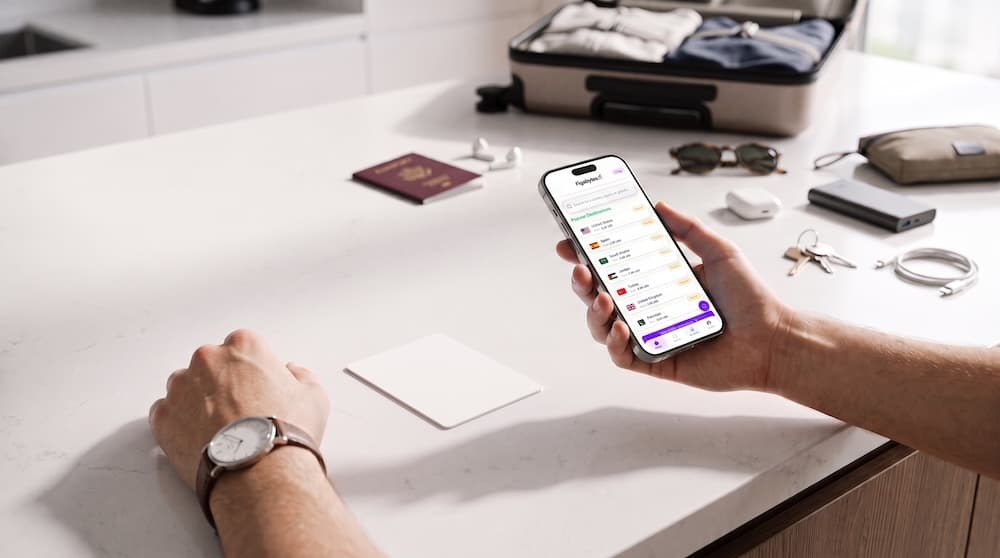
Getting an eSIM may sound technical, but the process is usually much simpler than buying and replacing a physical SIM card.
If your phone supports eSIM and is carrier-unlocked, you can purchase a travel data plan online, install it digitally, and prepare your connection before your trip.
With Figabytes, the process starts online. Choose your destination and plan, install the eSIM on your phone, and configure it for mobile data when you travel.
Here is how the entire process works.
To get an eSIM, you generally need three things:
For international travel, you can purchase a Figabytes eSIM online instead of visiting a mobile store after you arrive.
The basic process is:
There is no physical SIM card to collect or insert.
Before buying an eSIM, check your exact phone model.
Many newer smartphones support eSIM, but compatibility can vary by model and region.
Go to:
Settings → Cellular or Mobile Data → Add eSIM
If you see the Add eSIM option, your iPhone has eSIM functionality.
Depending on your model, go to:
Settings → Connections → SIM Manager
Look for an option such as:
Add eSIM
Go to:
Settings → Network & Internet → SIMs
Look for the option to add another SIM or eSIM.
Menu names can vary depending on the device and software version.
Yes, this is an important check.
A phone can support eSIM technology while still being locked to a specific mobile carrier.
If your device is carrier-locked, you may not be able to install or use an eSIM from another provider.
Check your device's carrier-lock status before purchasing a travel eSIM.
Buying a Figabytes travel eSIM can be done online.
Start by choosing where you are traveling.
Depending on your itinerary, you may find:
Choose the plan that best matches your destination, trip length, and expected data usage.
After purchasing your Figabytes eSIM, follow the installation information provided with your order.
Your eSIM details allow your compatible phone to download the mobile profile digitally.
Depending on the installation method available for your device and plan, setup may involve:
Follow the instructions provided for your specific eSIM.
QR code installation is one of the most common ways to add an eSIM.
Before starting:
Go to:
Settings → Cellular or Mobile Data → Add eSIM → Use QR Code
Then:
You could label it:
Figabytes
or:
Figabytes Travel
This makes it easier to identify when managing multiple lines.
The exact wording depends on the model and software version, but the process generally begins at:
Settings → Connections → SIM Manager → Add eSIM
Then follow the available installation instructions and scan your QR code when prompted.
Once installed, give the line a clear name so you can distinguish it from your home SIM.
On compatible Pixel devices, start from:
Settings → Network & Internet → SIMs
Choose the option to add a SIM or eSIM and follow the instructions on screen.
Scan the QR code provided with your Figabytes order when requested.
If QR installation is unavailable or does not work, some eSIMs can be installed using manual activation details.
Depending on your plan, these may include information such as:
Enter the information exactly as provided.
Do not substitute details from another eSIM or previous order.
You generally need an internet connection to download an eSIM profile.
For travelers, installing over reliable Wi-Fi before departure is usually the easiest approach.
This means you are not trying to download and configure your eSIM while standing at your destination airport without mobile data.
In most cases, preparing your eSIM before departure makes travel easier.
You can:
However, installation and activation are not necessarily the same thing.
Always check your specific Figabytes plan's activation conditions before enabling it.
This depends on the plan.
Some travel eSIM plans begin their validity when they first connect to a supported mobile network at the destination.
Activation rules can vary, so always check the information provided with your plan.
Do not assume that purchasing, installing, and activating an eSIM are the same event.
Once you reach your destination, your setup will generally involve selecting your travel eSIM for mobile data.
On iPhone, for example, you can review your lines under:
Settings → Cellular or Mobile Data
Then:
The exact menu names may differ between devices.
Travel eSIMs often connect through partner networks at your destination.
Because of how the connection is provided, Data Roaming may need to be enabled on your Figabytes line.
This does not mean you should enable roaming on every SIM in your phone.
If your home SIM is still active, check its settings separately.
If you are using Figabytes for travel data, make sure your phone is configured correctly.
A practical setup is:
Keep it available if you need:
Select it for:
Consider disabling Data Roaming on your home line to reduce the risk of accidentally using your home carrier's roaming data.
Your home carrier may still charge for calls, SMS, or other roaming services.
Yes, on compatible Dual SIM devices.
Using Figabytes for travel data does not necessarily require you to remove or disable your normal number completely.
You can potentially keep your primary line active while using Figabytes as the mobile data line.
This is one of the most useful advantages of eSIM for international travelers.
On compatible phones, switching your mobile data line can usually be done through the SIM or Mobile Data settings.
On iPhone:
Settings → Cellular or Mobile Data → Cellular Data
Choose the line you want to use for data.
Android menu names vary by manufacturer, but you can usually choose the preferred mobile data SIM from SIM Manager or network settings.
There is no need to physically remove a card simply to change your data line.
Many modern smartphones can store multiple eSIM profiles.
However, the number of profiles that can be stored and the number that can remain active simultaneously depend on the device.
This can be useful for people who have:
Check your exact device specifications before relying on multiple active eSIMs.
If your Figabytes eSIM is installed but you cannot connect, start with the basic settings.
Check that:
You can also toggle Airplane Mode on and off to force the device to reconnect.
If the phone connects to a network but mobile data does not work:
If your plan provides specific APN settings, enter them exactly as instructed.
APN stands for Access Point Name.
It tells your device how to connect to the mobile data network.
Many devices configure this automatically, but some travel eSIMs may require APN information to be entered manually.
If your Figabytes order includes APN instructions, follow those details rather than guessing the settings.
Possible reasons can include:
Check the installation instructions before deleting the eSIM.
No, not as your first troubleshooting step.
Travel eSIM profiles can have restrictions on reinstallation.
Deleting an eSIM may mean that the same activation details cannot simply be used again.
If you have an installation or connectivity issue, troubleshoot the existing profile or contact support before deleting it.
Do not assume that a travel eSIM can be freely transferred between devices.
Transfer and reinstallation rules depend on the eSIM.
If you are replacing your phone or accidentally installed your Figabytes eSIM on the wrong device, contact Figabytes support before deleting or attempting to move the profile.
Yes, provided you have reliable internet access and your device is compatible and unlocked.
However, installing before departure is generally more convenient.
Preparing in advance means you can spend your arrival time finding your hotel, ordering transportation, checking maps, or contacting family instead of configuring mobile settings.
The actual installation process can often be completed within a few minutes when:
Network connection after arrival can vary depending on the destination, device, and available network.
Use this checklist:
A few checks before purchasing can prevent most setup problems later.
Before leaving home, confirm:
Do not wait until you are offline abroad to look for your setup instructions.
Getting an eSIM is much easier once you understand the process.
You do not need to visit a SIM shop or replace your physical SIM just to get travel data.
With a compatible and unlocked phone, you can purchase a Figabytes eSIM online, install it digitally over Wi-Fi, prepare your settings before departure, and connect to supported networks when you reach your destination.
The key is preparation.
Check compatibility, install carefully, understand the activation conditions, and avoid deleting an eSIM if you experience a problem.
Once everything is configured, your travel data can be ready when you need it.
Choose your destination and prepare your mobile data before your next trip.

