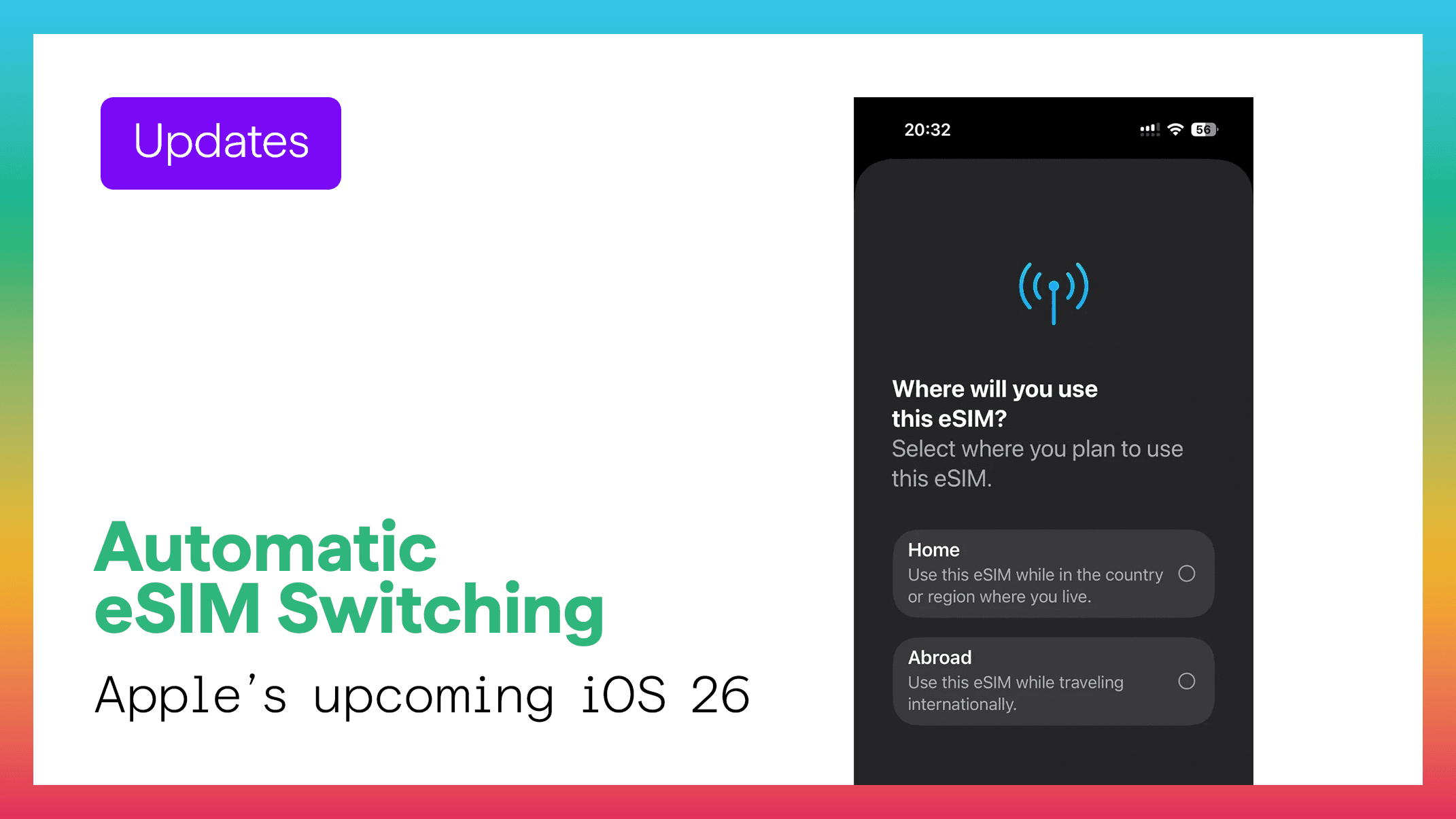
Apple’s upcoming iOS 26 introduces one of the most important connectivity upgrades in years: Automatic eSIM Switching.
This feature quietly transforms the way iPhones handle multiple mobile profiles and is especially powerful for travelers who depend on international eSIMs like Figabytes (https://figabytes.com).
Instead of manually switching between SIM profiles when crossing borders or choosing networks, iOS 26 now uses intelligence to automatically pick the right eSIM line — at the right time.
This update makes global travel faster, safer, and far more convenient.
🌍 What Is iOS 26 eSIM Auto-Switching?
Auto-Switching allows your iPhone to automatically move between your installed eSIM profiles based on:
This means your device handles all the switching in the background without any manual input.
For travelers, this is a game-changer.
✈️ Why Auto-Switching Is So Important for Travelers
1. Zero Roaming Mistakes
The biggest benefit:
You’ll never accidentally use your home SIM abroad again.
Your iPhone can now:
Turn off home data automatically overseas
Activate your Figabytes travel eSIM instantly
Prevent unexpected roaming charges
2. Smooth Multi-Country Travel
Traveling across Europe, Asia, or the Middle East?
iOS 26 automatically changes:
eSIM profile
Partner network
Preferred data line
No tapping, no menus — your iPhone follows your journey.
3. Faster & Stronger Network Selection
If your current connection becomes weak, iOS 26 will switch to a better available network profile automatically.
Perfect for:
4. Better Battery Efficiency
Older iOS versions drained battery while scanning networks.
iOS 26 optimizes this process, giving travelers better endurance — especially when using 5G and roaming.
5. Ideal for eSIM-Only iPhones
With iPhone 15 (US), iPhone 17, and upcoming models removing the SIM tray entirely, eSIM is now the standard.
Auto-Switching ensures a smooth experience for:
📱 How Auto-Switching Works With Figabytes
When you install a Figabytes eSIM on your iPhone:
iOS detects your travel location
Switches your data line to Figabytes
Chooses the best supported network
Enables roaming automatically
Keeps your home line active for calls/SMS
Switches you back when you return home
This gives you instant connectivity the moment you land.
Explore travel eSIMs at:
👉 https://figabytes.com
🔧 Who Benefits Most From Auto-Switching?
Auto-Switching brings peace of mind — your iPhone now handles all connectivity decisions for you.
🔮 The Future of eSIM Technology
Apple’s shift toward full automation signals a broader industry trend:
eSIM will replace physical SIM entirely
Carriers will modernize global roaming systems
Travel eSIM platforms like Figabytes will become essential tools
Connectivity will feel seamless, borderless, and automatic
iOS 26 is one of the biggest steps Apple has taken toward a fully digital mobile world.