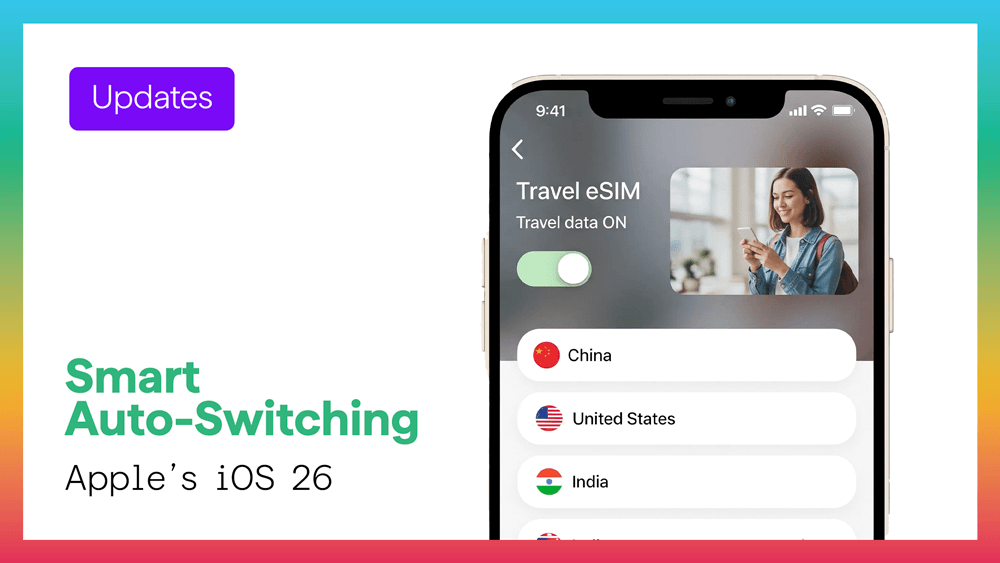
Apple’s iOS 26 update introduces one of the biggest upgrades to eSIM management since digital SIMs first appeared on the iPhone: Smart Auto-Switching.
This new system gives your iPhone the intelligence to automatically pick the right eSIM profile — based on where you are, what network is strongest, and which plan best fits your current location.
For global travelers and digital nomads using international eSIMs like Figabytes (https://figabytes.com), this change offers smoother, faster, and more reliable connectivity than ever before.
🌍 What Is iOS 26 Smart Auto-Switching?
Smart Auto-Switching allows your iPhone to automatically activate or deactivate specific eSIM profiles depending on:
This means your device seamlessly transitions between your home eSIM, travel eSIM, and regional eSIMs without you opening Settings.
It works fully in the background — your phone simply “knows” which profile to use.
✨ Why This Matters (Especially for Travelers)
1. No More Manual Switching
Before iOS 26, travelers had to switch eSIM profiles manually — often forgetting, leading to roaming charges.
Now, your phone:
Turns OFF home data when you travel
Turns ON your Figabytes travel eSIM automatically
Prevents accidental roaming
Chooses the best available partner network
2. Perfect for Multi-Country Trips
If you're hopping across borders — Europe, Middle East, Southeast Asia, etc. — Auto-Switching automatically activates the correct regional profile.
With Figabytes regional plans covering multiple countries, this makes multi-stop travel completely frictionless.
3. Always Connects to the Strongest Network
If your current signal becomes weak or unstable, iOS 26 switches you to another available network partner instantly.
Ideal for:
4. Designed for eSIM-Only iPhones
Devices like iPhone 17 and future models rely exclusively on eSIM technology.
Auto-Switching ensures users never feel the absence of a physical SIM tray.
It’s the foundation for Apple’s fully digital connectivity roadmap.
📱 How It Works with Figabytes eSIMs
When you install a Figabytes eSIM, your iPhone can automatically:
Detect when you land in your destination
Switch your data line to Figabytes
Enable roaming instantly
Pick the optimal local partner network
Keep your home SIM active for calls and SMS
Switch you back when you return home
No settings.
No manual toggles.
Just instant borderless connectivity.
Explore Figabytes country and regional plans at:
👉 https://figabytes.com
🔧 How to Enable Auto-Switching in iOS 26
Go to Settings
Tap Mobile Data
Choose eSIM Profiles
Tap Auto-Switching
Turn ON “Automatically Select Best Line”
Your iPhone will then manage all SIM transitions automatically.
🔮 The Bigger Picture: eSIM as the Global Standard
Auto-Switching isn’t just an iOS feature — it signals a major shift:
More devices will drop SIM trays
Carriers will expand eSIM support
Travel eSIM adoption will explode
Multi-region profiles will become the norm
Connectivity will become as seamless as GPS
Platforms like Figabytes are already built for this future:
digital-first, global, and ready for instant activation.