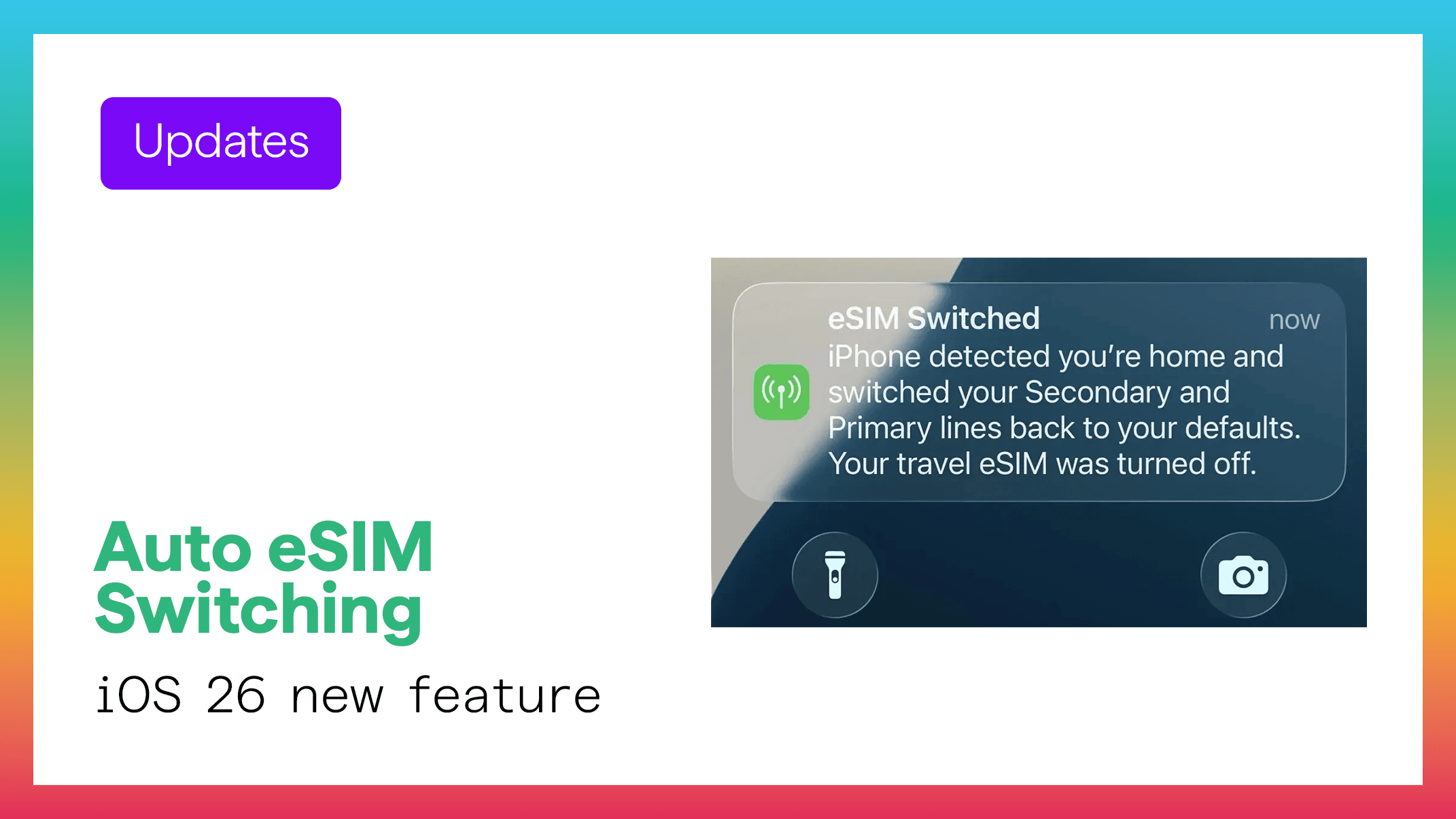
As Apple continues to refine iOS 26, beta testers have started noticing a new behavior that wasn’t clearly documented before: automatic eSIM switching. According to early testers, iPhones running the latest developer beta are automatically switching between eSIM profiles when signal quality drops or when a better network becomes available.
This quiet upgrade could be one of the most impactful changes for iPhone users who rely on multiple eSIMs, especially international travelers using Figabytes (https://figabytes.com).
Here’s a breakdown of what testers are seeing — and why it matters.
📱 What Testers Are Noticing in iOS 26
Based on real user reports, iOS 26 appears to:
Switch to a different eSIM profile when signal becomes weak
Reactivate a previously inactive line when needed
Automatically choose the profile with the best network coverage
Toggle roaming data intelligently when abroad
Prioritize data stability over the last selected SIM
This suggests Apple is building a more adaptive, location-aware SIM management system.
🌍 Why This Behavior Is So Important for Travelers
1. No More Manual Profile Switching
Travelers often keep multiple eSIMs:
A home line
A regional plan (Europe, Asia, Middle East)
A local travel eSIM (like Figabytes)
iOS 26 now handles switching automatically — ideal when crossing borders or entering areas with patchy coverage.
2. Better Connectivity With No Dropouts
If your current eSIM loses service or weakens, iOS 26 switches to a stronger network line instantly.
This means:
3. Reduces Accidental Roaming Charges
One of the biggest travel problems is accidentally using your home SIM for data abroad.
iOS 26’s auto-switching behavior lowers the risk by:
Activating your travel eSIM automatically
Deactivating home data abroad
Ensuring roaming is only used when intended
Perfect for Figabytes users who rely on predictable travel data plans.
🧠 Smarter SIM Logic for Multi-eSIM iPhones
iPhones that support multiple eSIMs benefit the most from this upgrade.
iOS 26 seems to prioritize:
Signal strength
Plan eligibility in your current country
Roaming settings
Data availability
Last-used or preferred line
This is the first time Apple has moved toward a “smart SIM engine” that adjusts without user input.
🔧 What This Means for Figabytes Users
If you travel with a Figabytes eSIM installed, iOS 26 may automatically:
Activate Figabytes when you land
Switch to the strongest partner network
Disable home eSIM data abroad
Restore your home SIM when you return
Keep WhatsApp/SMS working on the primary line
This makes travel connectivity far more seamless.
Explore global eSIMs at:
👉 https://figabytes.com
🔮 What This Tells Us About the Future
This new beta behavior likely hints at Apple’s long-term vision:
iPhones will eventually manage all SIM logic automatically
Physical SIMs are being phased out
Smart eSIM switching will become normal
Travel eSIM adoption will skyrocket
Carriers will begin optimizing for automatic profile switching
With more iPhones shipping as eSIM-only, features like this are essential.