Apple continues to improve how iPhones handle eSIM setup, activation, and transfer. Whether you’re adding a new eSIM, moving your number to a different iPhone, or installing a travel eSIM like Figabytes (https://figabytes.com), the latest iOS versions make the process more seamless than ever.
Here’s the complete guide on how to set up, transfer, and manage eSIM on your iPhone.
📱 Setting Up an eSIM on iPhone
There are three main ways to install an eSIM:
1. Install an eSIM Using QR Code
Open Settings
Tap Mobile Data
Select Add eSIM
Tap Use QR Code
Scan the Figabytes QR sent to your email
Follow on-screen instructions
Turn Data Roaming ON when traveling
This is the most common method for travel eSIMs.
2. Install Using a Direct Activation Link (Fastest for Figabytes)
Connect to Wi-Fi
Tap your Figabytes eSIM install link
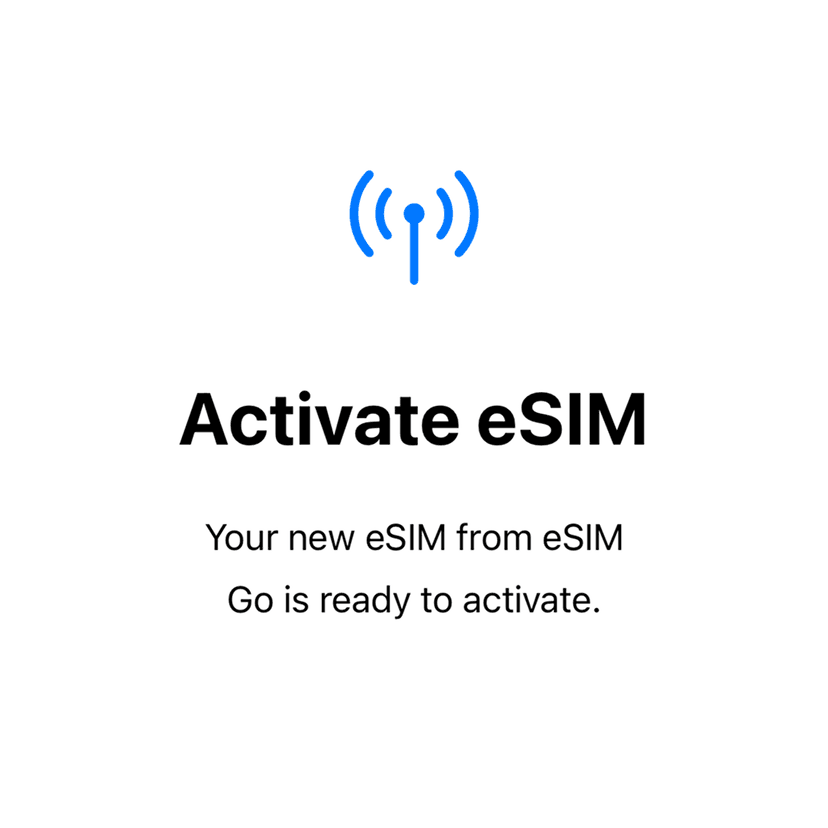
Your iPhone will show “Add eSIM”
Tap Continue
Wait for installation to complete
This uses Apple’s universal eSIM activation system — no scanning needed.
3. Add eSIM Using Manual Details
If QR or link doesn’t work:
Go to Settings → Mobile Data → Add eSIM
Choose Enter Details Manually
Enter the Figabytes SM-DP+ address
Enter your activation code
This method is used in rare cases when installation is blocked by Wi-Fi or scanning issues.
🔄 Transferring an eSIM Between iPhones
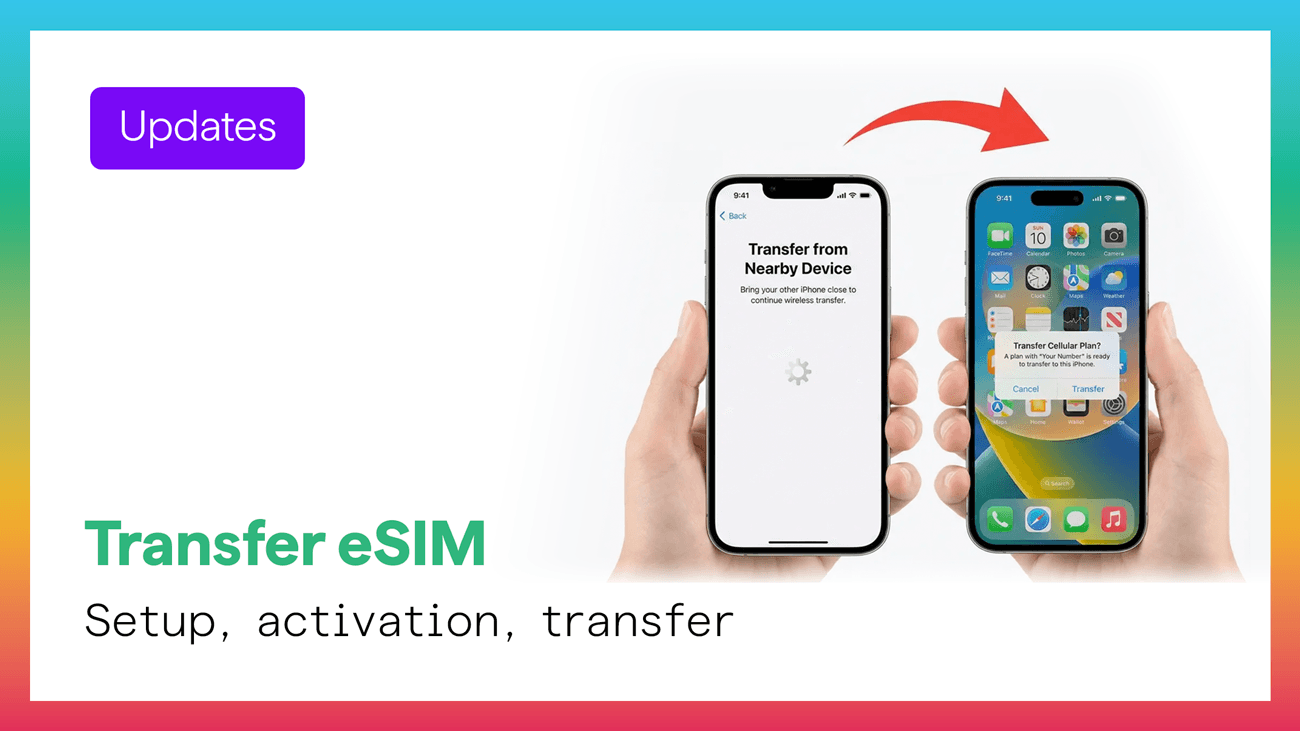
If you upgrade your device, you can move your carrier eSIM between iPhones using Apple’s internal transfer tool.
How to Transfer Your Primary Carrier eSIM
Turn on your new iPhone
Follow setup steps until you see Transfer SIM
Choose the number you want to move
Approve transfer on your old iPhone
Activation completes automatically
This is for carrier phone numbers, NOT travel eSIMs.
❗ Important for Figabytes Users:
Travel eSIMs (like Figabytes) cannot be transferred using Apple’s transfer feature.
They must be installed fresh on each device using a new activation code.
If you changed phones, request a replacement from Figabytes support.
🌍 Using eSIM While Traveling
To ensure your Figabytes eSIM works correctly abroad:
1. Set Figabytes as Your Data Line
Settings → Mobile Data → Mobile Data Line → Figabytes
2. Turn ON Data Roaming
Settings → Mobile Data → Figabytes → Data Roaming ON
3. Keep Your Home SIM Active for Calls/SMS
Your home number still works for WhatsApp, SMS, and OTP codes.
4. Add APN If Needed
Settings → Mobile Data → Mobile Data Network → enter APN from your Figabytes order.
🔌 When to Use eSIM Instead of Physical SIM
eSIM is ideal for users who want:
Instant activation
No SIM card swapping
Multi-country travel
Secure and tamper-proof connectivity
Better battery efficiency (iOS 17+)
Simpler dual-SIM management
It’s also the future — iPhone 17 models are reportedly eSIM-only worldwide.
📩 Need a Travel eSIM for Your Trip?
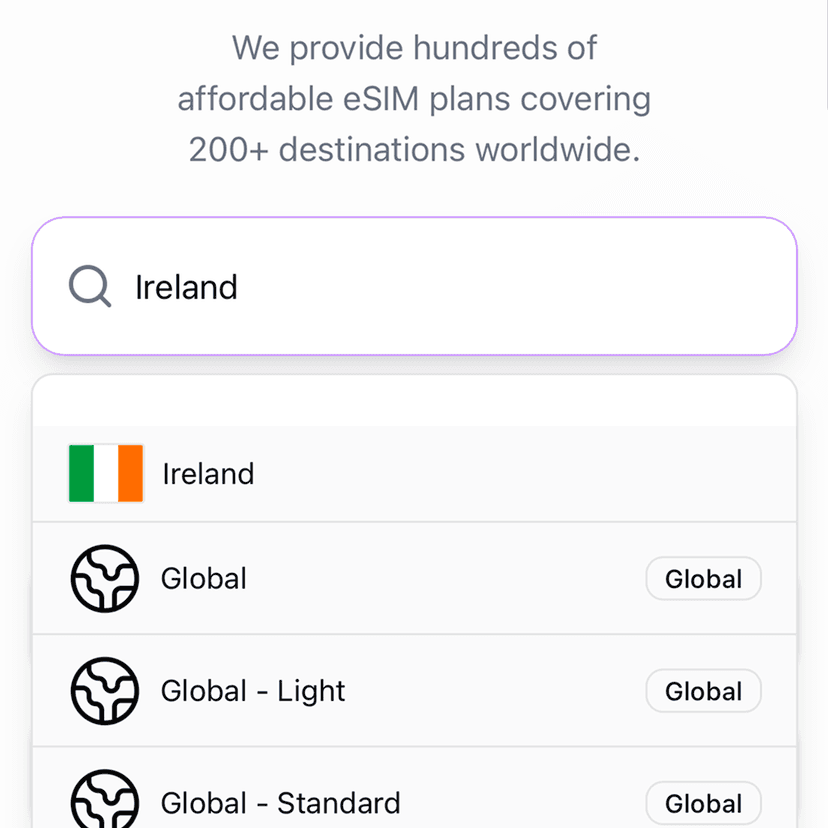
Figabytes offers instant eSIMs for 190+ countries, including:
Find your destination here:
👉 https://figabytes.com