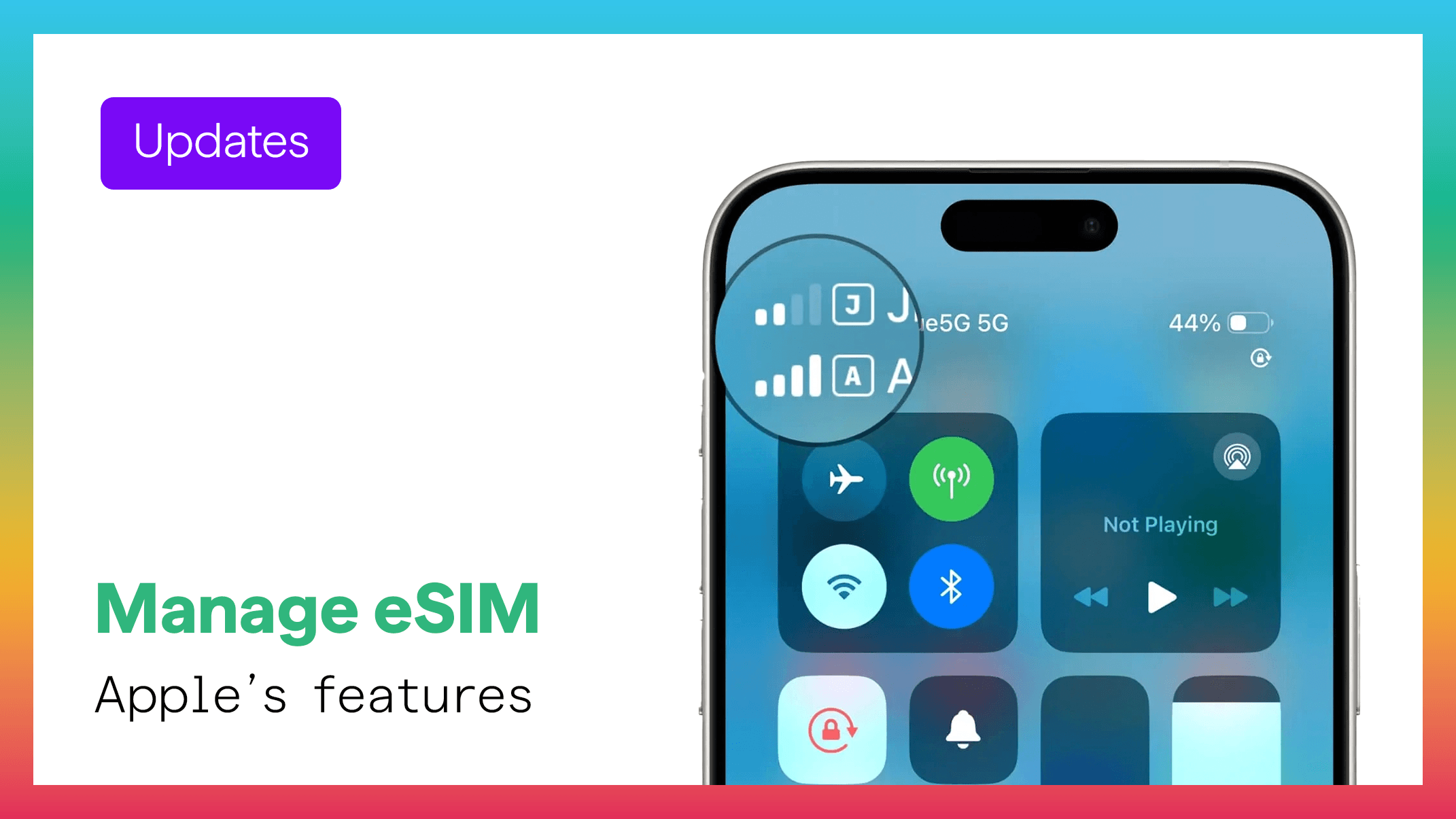
Managing your mobile lines on an iPhone has become simpler and more powerful thanks to Apple’s updated eSIM features. Whether you're adding a new line, switching between SIM profiles, or using a travel eSIM from Figabytes (https://figabytes.com), your iPhone gives you full control over your connectivity.
Here's a clear guide on how to view, manage, and customize your eSIM settings.
📱 Where to Access Your eSIM Settings
You can manage all SIM profiles from one place:
Settings → Mobile Service / Mobile Data
This page shows:
All active eSIM plans
Labels for each line
Data usage
Roaming settings
Network options
You can tap any eSIM to edit or customize its behavior.
🔁 Switching Between eSIM Lines
If you have multiple eSIMs (for example, your home SIM + a Figabytes travel eSIM):
Go to Settings → Mobile Data
Tap Mobile Data Line
Select the eSIM you want to use for data
Your iPhone switches instantly without restarting.
For calls and SMS, you can choose a different default line, or let your iPhone automatically pick the right one based on your last usage.
🌍 Managing a Travel eSIM (Figabytes)
If you're traveling internationally:
1. Turn ON Data Roaming
Settings → Mobile Data → Your Figabytes eSIM → Data Roaming ON
2. Set Figabytes as Your Data Line
Your device will use your Figabytes plan for internet while keeping your home line active for calls/WhatsApp.
3. View Coverage Information
Your eSIM page will show your network connection status and the carrier you are currently using.
4. Add or Delete eSIMs
You can remove unneeded eSIMs from the same menu.
Note: Travel eSIMs cannot be restored after deletion — contact Figabytes if you need a replacement.
Explore global plans at:
👉 https://figabytes.com
🛠️ Customize Each eSIM Line
Inside each eSIM profile, you can adjust:
• Network Selection
Automatic or manual — helpful if you want to choose a specific local carrier.
• Data Mode
Choose 5G Auto, 5G On, or LTE for better battery or coverage.
• Labeling
Rename lines (e.g., “Home,” “Work,” “Figabytes Travel”) for easier switching.
• Data Usage Tracking
See how much data you’ve used per line.
• Turn Line On/Off
Deactivate a line temporarily without deleting it.
🔐 SIM PIN & Security
You can set or remove a SIM PIN to protect your mobile plan from unauthorized use:
Settings → Mobile Data → SIM PIN
This applies to eSIMs as well.
🔄 Removing or Re-adding an eSIM
If you need to remove an eSIM:
Go to Settings → Mobile Data
Select the eSIM
Tap Delete eSIM
For travel eSIMs like Figabytes, deletion cannot be undone — you would need a replacement activation.
💡 Final Thoughts
iPhones give users complete flexibility with eSIM management. Whether you’re switching profiles, controlling roaming, or using a digital travel plan through Figabytes, managing your mobile connectivity is now easier and more secure than ever.
Browse global and regional eSIM plans:
👉 https://figabytes.com